
Additional information for managing a Rutgers IT subsite
Please see below miscellaneous topics related to maintaining and developing Rutgers IT subsites.
Accordion Content
-
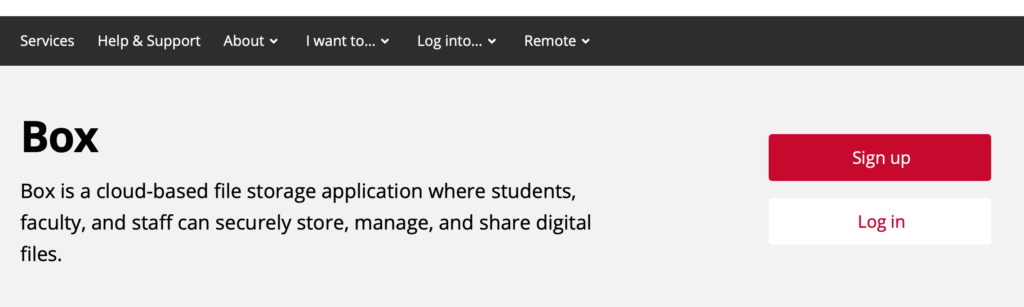
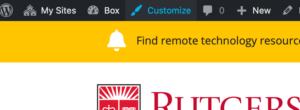
Click on Customize > Site identity
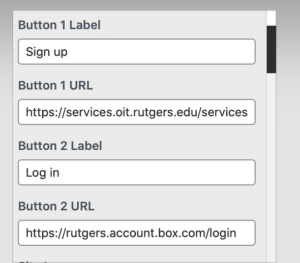
Scroll down a little to the section where you add the buttons and then publish.
-
In order to add subsite links to Services webpage/listing go to the core site dashboard’s Services section. Add your subsite listing. The description section will be added to the subsite home page’s header bar. When you add a Service listing, the subsite will show up in the Rutgers IT web site’s site search.
Metadata for Services should be entered as tags.
-
Use this to add users:
Add user [https://it.rutgers.edu/adduser]To review users and what roles they have, visit:
[https://it.rutgers.edu/user-audit/] -
Go to the Advanced tab of a section, using the Divi Builder. In the “CSS ID” field, insert a word for the anchor link. There should be no spaces. You can see an example on the Help & Support page. The word “contact” is in the “CSS ID” field in the “Search for Department and Unit IT Support Contacts” section. The anchor link is https://it.rutgers.edu/help-support/#contact
-
(8/6/24 note: This content may no longer apply. Confirm with Rich) To exclude pages from Search results, you can read documentation at https://documentation.ajaxsearchpro.com/advanced-options/excluding-and-including-results/exclude-by-item-or-id and visit the following URL to make changes: https://it.rutgers.edu/wp-admin/admin.php?page=asp_settings&asp_sid=5#706
Here are the key steps:- Visit Ajax Search Pro from the dashboard of the core site.
- Choose the gear icon next to Site Search Results Page.
- Choose Multisite Options.
- Move items from Available Blogs to the column to the right of that.
- Save changes.
-
To search for links or text throughout it.rutgers.edu log into WordPress and use the link https://it.rutgers.edu/utility/search.php?query=XXX, where XXX is the specific text or link that you would like to find. A list of links will be returned.
-
View the gallery of icons you can choose from: https://fontawesome.com/icons?d=gallery. (See https://fontawesome.com/how-to-use/on-the-web/styling/sizing-icons for information on sizing options for icons, as well as styling (see sidebar).
-
Create a yellow (default), blue (informational), or red (critical) site-wide banner by accessing “Theme Settings” on the core site dashboard. You can set the color of the banner under the “Type of Alert” drop-down field. On the Alerts tab, toggle the “Global Alert” to “Enable”, and you’ll see where to enter the text and button link. Update your changes in order to display the Global alert.
-
You must have an administrator role to do this. In Divi Visual Builder go to the Section Settings > Advanced tab. Under Visibility, select all the check boxes (Phone, Tablet, and Desktop).
-
Here are the key steps:
- Visit Ajax Search Pro from the dashboard of the core site.
- Choose the gear icon next to Site Search Results Page.
- Choose Multisite Options.
- Move items from Available Blogs to the column to the right of that.
- Save changes.
-
To avoid having pages discovered by search or viewable by others when a new subsite is under development, you can make the pages within the subsite private, put them in “Draft” mode, or password-protect them.
-
On the upper right sidebar of a page in WordPress, edit “Visibility,” select Password protected and create a password.
-
This feature allows you to easily send preview urls to non-Wordpress users only when you create a first draft (not after you publish the page). Just check the box “Enable public preview” and copy the url which can be viewed by anyone.
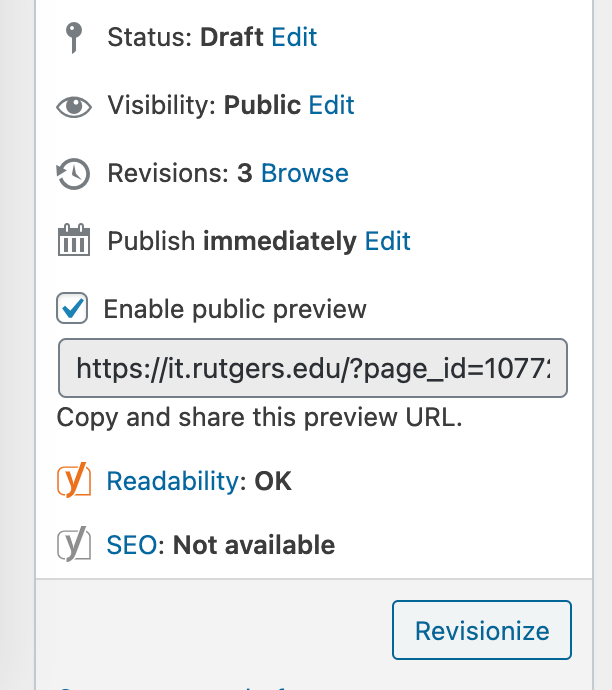
If you publish the page, you can use this post preview functionality again if you “Revisionize” the page.
-
Add the class “no-shadow” to remove a box shadow from an image.
-
Toggle the button to “Private Resource” found on the lower right sidebar when you are editing the page in WordPress.
-
Occasionally, you may need to create a new draft home page for a subsite that needs to go through rounds of review by various people. The best way to do this is create a new page and choose the template “Full Header (Mock Front Page).” Password protect and publish the page so that all necessary users can view the page. When you are ready to launch that new page as the new home page, do the following:
Go to Settings > Reading. Under the Homepage dropdown, select the new page you would like to designate as the home page. On the page itself you will need to update the Template from “Full Header (Mock Front Page)” to “No Sidebar.”
-
IMPORTANT: If roles are assigned in the Service Template, those roles will be inherited when a new subsite is created. When we add new subsites, we will need to add users to those subsites in these appropriate roles if those roles were not assigned in the Service Template.
To change user roles among multiple subsites, visit:
https://it.rutgers.edu/adduserTo see what roles a user has, visit https://it.rutgers.edu/adduser, though you may need to use Chrome to do this for now.
Some roles include the following:
Content editor
This role will primarily be given to all subsite owners and their delegates. This role allows users to edit verbiage and create simple pages with a lot of copy, but does not provide access to the Divi Design builder.Contributor role
This role can be used for students who have graduates (or others who are no longer with the university), when the individual should be listed as the author for Newsroom articles or other content.Media editor role
This role allows someone to upload images and edit their alt text, captions and descriptions. They are unable to edit other content types.View more information regarding Rutgers IT roles: https://it.rutgers.edu/rutgers-it-site-documentation/knowledgebase/rutgers-it-roles-rubric/
-
This is the template used as a basis for other subsites. We should make changes to this as needed.
To change what homepage is used within the Service Template, visit Settings > Reading > Landing Page Home.
Articles or other content (from the Service Template) that we’re not using should be deleted once we’re done with the initial version of a subsite.
Roles in the Service Template are inherited when a new subsite is created (see section on Roles). -
Visit https://dashboard.algolia.com/apps/MUY1IOKY4U/explorer/configuration/prod_rutgers_it/ranking-and-sorting and copy the file https://it.rutgers.edu/utility/search-index.php. Then go to “Manage index,” “Clear records,” and then add records manually and save.
In the synonyms section you can add words that should result in the same page, like “voice mail password reset” and “voice” -
To adjust the description of the “Student Tech Guide” or “Faculty/Staff Tech Guide,” click “Edit Page.” In the back-end, you will have to click “Use the Default Editor” to adjust the page description.
To re-order items, in the Tech Guides section of the dashboard, go to Re-Order. Here you can you re-order items globally for Students, Faculty and Staff. You can’t order the items for one audience differently from another audience. Make sure to select Update at the bottom of the page in order for the changes to take effect.
-
To allow the ability to upload a new file type to Media, go to the core site, Network Admin > Network Settings > Upload file types
-
Visit https://it.rutgers.edu/content-review/ to see what is in draft or pending review.
-
Visit https://it.rutgers.edu/kb-topic/ to see KB articles or FAQs with missing topics from all the subsites.
