

How to create a subsite (Super Admin access required)
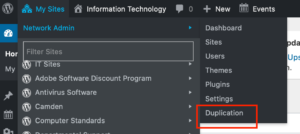
On the upper left of your WordPress dashboard, select Network Admin –> Duplication
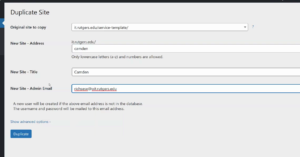
Original site to copy field should be “it.rutgers.edu/service-template”
New Site – Address field should match the name of your subsite. For example, if your subsite’s name is “Microsoft Sharepoint Online,” then your url should be it.rutgers.edu/microsoft-sharepoint-online
New Site – Title field should be the name of your subsite
New Site – Admin Email should be Rich Sese’s email address.
Then select Duplicate.
***IMPORTANT*** Do not click on Duplicate more than once or this can cause database corruption. When the subsite has been created you will see a notification towards the top of your screen. If you have any issue, please contact Richard Sese.
Update the breadcrumb in the SEO section of the dashboard under Yoast SEO > Settings > Advanced > Breadcrumbs. Update the “Anchor Text for the Homepage” field to update the breadcrumb with the site’s title.
In order for Ninja forms submissions to function properly and flow to the designated people, apply the following settings in the WP Mail SMTP section of the subsite’s dashboard.
- From Email: wcs-mail-service@oit.rutgers.edu
- Force From Email: Check the box
- From Name: Rutgers IT Mail Service
- Force From Name: Check the box
- SMTP Host: smtp.rutgers.edu
- Encryption: TLS
- SMTP Port: 587
- Authentication: ON
- SMTP Username: OITConst
- SMTP Password: Contact Rich Sese or Anita DeSimone
To keep this site from being indexed by search engines go to the individual subsite’s dashboard and select Settings -> Reading and check off the box “Discourage search engines from indexing this site.” Make sure to turn this back on when your site is ready to officially launch.
