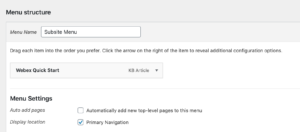
How to add custom links to a subsite navigation (quick links)
One custom link highlighted in red can be added to a subsite navigation. Additional links can be added in a dropdown underneath this red custom navigation link if desired. This should be done sparingly, and only after consultation with the IT communications team. Here is an example from the Webex site:

Implementations steps
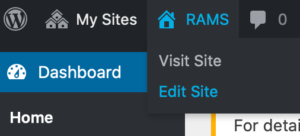
1. Find your subsite’s id by going to your subsite dashboard. Under your subsite’s name in the navigation, select Edit site. You will see the id # of your site at the end of the url in your browser’s url address window. For example the Webex id=41.
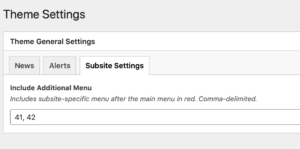
2. Go to the core site’s dashboard Theme Settings. On the third tab Subsite Settings, add the site’s id number after inserting a comma.
3. Go to your subsite’s dashboard > Appearance > Menus. From the dropdown, “Select a menu to edit,” select the navigation designated with (Primary navigation). Change the first link under the instruction, “Drag each item into the order you prefer,” to your desired link. Then Save the menu and your new navigation is live.