

Manual timesheet entry process in PeopleSoft
The following are instructions on how to manually enter timesheet hours in PeopleSoft within myRutgers portal for hourly employees in OIT.
- Log into my.rutgers.edu/portal.
- Select NetID, enter the NetID and Password.
- Select PeopleSoft Management.
- Then select Manage Self Service and from the drop-down menu select Time Management.

- Select Time Management.

- Select Report Time (Search by Employee ID or Last Name, then select “Get Employee“).
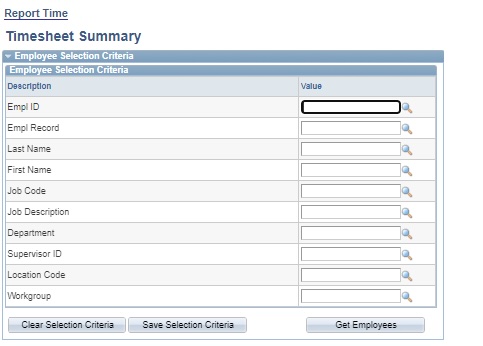
- Select the employee, verify the top information such as Employee Name, Employee ID, Hourly Rate. Below the table, click “Elapsed Timesheet.” This is a friendly view.
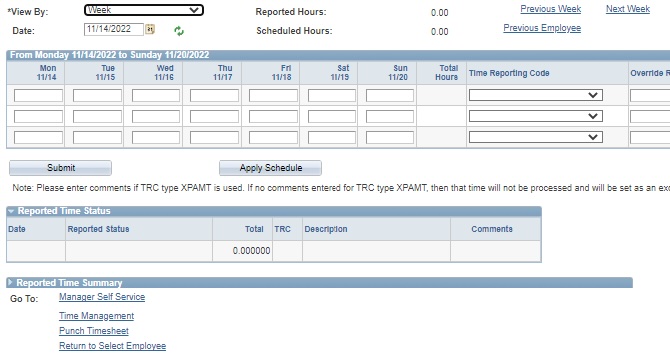
- Enter the hours, “Select HREG – Hourly Regular” from the Time Report Code drop-down and submit. Make sure to refresh each time that you select a new date.
