
Managing images on your Rutgers IT subsite
If you would like an image to appear on a page of the new website, you must store it in the “Media Library” of the subsite.
Under “Media,” click “Library.”
Click “Add New.”

Drop image file within drop upload box or click the “Select Files” button.

Add alternative text for all meaningful images. Alt tags for purely decorative images may remain empty. Alternative tags are required to comply with Rutgers’ accessibility policy. Alt text is used by screen readers to describe images.

Managing images
From the WordPress Media Library, editing settings can be accessed by clicking the image and then clicking the “Edit Image” button.
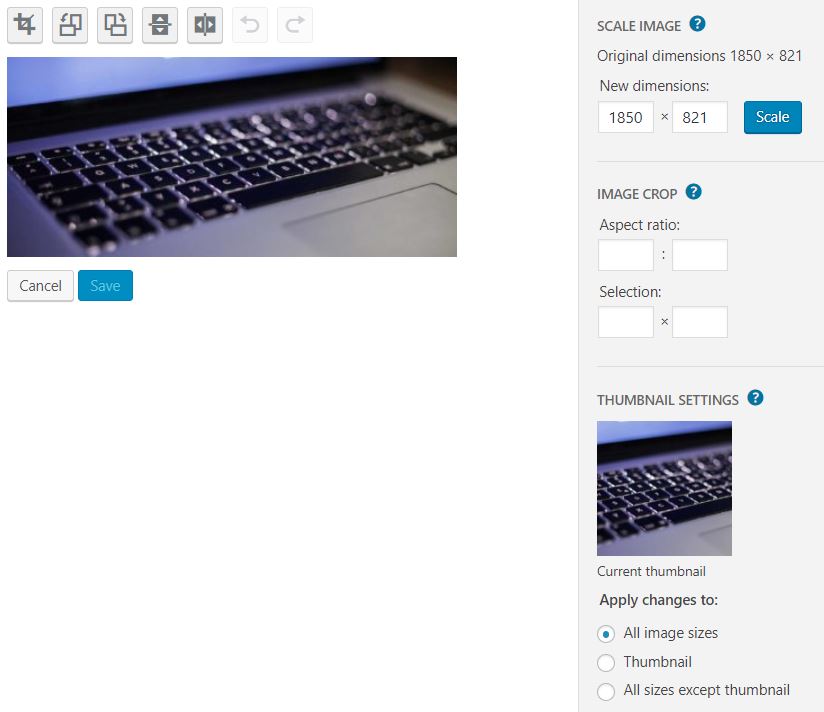
Image editing settings are displayed.
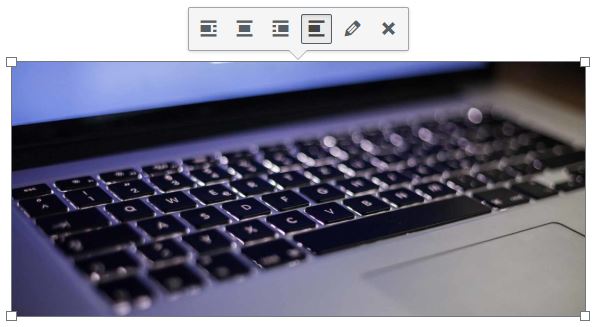
To resize an image, you can insert it into a post and grab the handles at the corners of the image to resize.
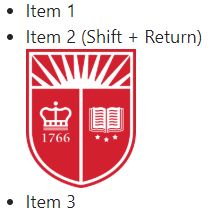
To add an image within a bulleted list, use Shift + Return and insert the image by clicking the “Add Media” button.
You can also use the Divi image module to insert an image.
With photos we get from UCM, preserve the filename—or, at least, the digits of the filename.
